分类 运维技术 下的文章

环境:centos6.6,带有CSF的服务器;该安装方法也适用于XEN、KVM虚拟化结构VPS

首先编辑 /etc/csf/csf.conf ,打开1723、1356端口;

vi /etc/csf/csfpre.sh

iptables -t nat -A POSTROUTING -o eth1 -j MASQUERADE
iptables -A INPUT -p gre -j ACCEPT
iptables -A OUTPUT -p gre -j ACCEPT
iptables -A FORWARD -i ppp+ -o eth1 -p ALL -j ACCEPT
iptables -A FORWARD -i eth1 -o ppp+ -p ALL -j ACCEPT
iptables -t nat -A POSTROUTING -s 172.16.22.0/24 -j SNAT --to-source `ifconfig  | grep 'inet addr:'| grep -v '127.0.0.1' | cut -d: -f2 | awk 'NR==1 { print $1}'`
iptables -A FORWARD -p tcp --syn -s 172.16.22.0/24 -j TCPMSS --set-mss 1356

创建 csfore.sh 设置防火墙开启转发等;注意代码中 eth1 为公网IP网卡

创建安装PPTP一键脚本
vi /root/pptpd6.sh

yum remove pptpd ppp -y
iptables --flush POSTROUTING --table nat
iptables --flush FORWARD
rm -f /etc/pptpd.conf
rm -f /etc/ppp
arch=`uname -m`
yum -y install make libpcap iptables gcc-c++ logrotate tar cpio perl pam tcp_wrappers dkms kernel_ppp_mppe ppp
wget https://www.cnweed.com/usr/uploads/2015/08/pptpd-1.4.0-1.el6.$arch.rpm
rpm -Uvh pptpd-1.4.0-1.el6.$arch.rpm

mknod /dev/ppp c 108 0
echo 1 > /proc/sys/net/ipv4/ip_forward
echo "mknod /dev/ppp c 108 0" >> /etc/rc.local
echo "echo 1 > /proc/sys/net/ipv4/ip_forward" >> /etc/rc.local
echo "localip 172.16.22.254" >> /etc/pptpd.conf
echo "remoteip 172.16.22.1-253" >> /etc/pptpd.conf
echo "ms-dns 8.8.8.8" >> /etc/ppp/options.pptpd
echo "ms-dns 8.8.4.4" >> /etc/ppp/options.pptpd

pass=`openssl rand 6 -base64`
if [ "$1" != "" ]
  then pass=$1
fi

echo "vpn pptpd ${pass} *" >> /etc/ppp/chap-secrets

#iptables -t nat -A POSTROUTING -s 172.16.22.0/24 -j SNAT --to-source `ifconfig  | grep 'inet addr:'| grep -v '127.0.0.1' | cut -d: -f2 | awk 'NR==1 { print $1}'`
#iptables -A FORWARD -p tcp --syn -s 172.16.22.0/24 -j TCPMSS --set-mss 1356
#service iptables save
#chkconfig iptables on
chkconfig pptpd on
#service iptables restart
service pptpd start

echo ""
echo "VPN service installed successfully, your VPN username is vpn, VPN password is ${pass}"
echo "Please visit: http://www.cnweed.com"
echo ""

保存。然后 csf -r 重启CSF防火墙,以及sh /root/pptpd6.sh 安装脚本

chmod 755 /root/pptpd6.sh
csf -r
sh /root/pptpd6.sh

注:如果ip_forward没有打开,可以直接修改/etc/sysctl.conf

net.ipv4.ip_forward=1

修改之后运行 sysctrl -p 使其生效
打开控制面板-管理工具,终端服务-终端服务配置

1、连接:RDP-tcp 点右键,属性。网络适配器-最大连接数,只允许1个。

2、终端服务器授权模式:点右键,属性。常规,限制每个用户只能使用一个会话,掉勾,确定。

3、防止恶搞,阻止远程用户终止控制台管理员

运行-gpedit.msc ,计算机配置-管理模板-Windows组件-终端服务。
终端服务器-连接。

配置:拒绝将已经登录到控制台会话的管理员注销,设置启用。

重启生效

参考:http://dengcunhong.blog.163.com/blog/static/28812917201242611115897/

一、安装hdparm

yum install hdparm -y

二、评估读取
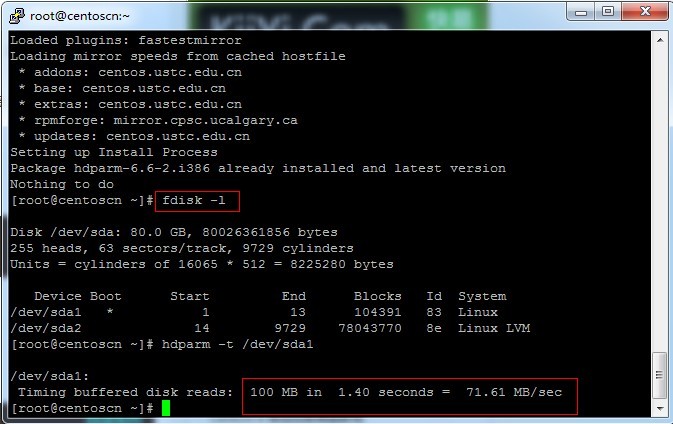
SSD 硬盘,请使用hdparm命令进行读取测试。

hdparm -t /dev/sda1 L

SSH执行以上命令,可使用hdparm评估SSD的读取速率。
注意,“/dev/sda1”指的是对应磁盘的驱动号,请执行“fdisk -l”查看。

032A03351-0

转载自:http://linux.it.net.cn/CentOS/server/2014/0226/332.html

In this section, we will analyze real-world examples of programs that
call the gethostbyname*() functions, but we first introduce a small test
program that checks whether a system is vulnerable or not:

[user@...ora-19 ~]$ cat > GHOST.c << EOF
#include <netdb.h>
#include <stdio.h>
#include <stdlib.h>
#include <string.h>
#include <errno.h>

#define CANARY "in_the_coal_mine"

struct {
  char buffer[1024];
  char canary[sizeof(CANARY)];
} temp = { "buffer", CANARY };

int main(void) {
  struct hostent resbuf;
  struct hostent *result;
  int herrno;
  int retval;

  /*** strlen (name) = size_needed - sizeof (*host_addr) - sizeof (*h_addr_ptrs) - 1; ***/
  size_t len = sizeof(temp.buffer) - 16*sizeof(unsigned char) - 2*sizeof(char *) - 1;
  char name[sizeof(temp.buffer)];
  memset(name, '0', len);
  name[len] = '\0';

  retval = gethostbyname_r(name, &resbuf, temp.buffer, sizeof(temp.buffer), &result, &herrno);

  if (strcmp(temp.canary, CANARY) != 0) {
    puts("vulnerable");
    exit(EXIT_SUCCESS);
  }
  if (retval == ERANGE) {
    puts("not vulnerable");
    exit(EXIT_SUCCESS);
  }
  puts("should not happen");
  exit(EXIT_FAILURE);
}
EOF

[user@...ora-19 ~]$ gcc GHOST.c -o GHOST

On Fedora 19 (glibc-2.17):

[user@...ora-19 ~]$ ./GHOST
vulnerable

On Fedora 20 (glibc-2.18):

[user@...ora-20 ~]$ ./GHOST
not vulnerable

修复漏洞
升级glibc库

RHEL/CentOS : sudo yum update glibc
Ubuntu : sudo apt-get update ; sudo apt-get install libc6

参考:http://www.openwall.com/lists/oss-security/2015/01/27/9

Server Shield是一款轻量级的系统保护和强化工具

它的功能包括:

Firewall Hardening 防火墙强化
TCP Hardening TCP强化
Data Leakage Protection 防泄保护
ICMP/Ping Flood Protection ICMP/Ping攻击保护
Rootkit Protection Rootkit保护
DoS Protection DDOS保护
Spoof Protection Spoof保护
Bogus TCP Protection Bogus TCP保护
SYN Flood Protection 洪水攻击保护
FTP/SSH 暴力破解保护
等……

依赖软件

yum-security
iptables
net-tools
sed
gawk
git

安装

git clone https://github.com/bluedragonz/server-shield

cd server-shield;chmod +x sshield;mv sshield /etc/init.d

/etc/init.d/sshield start    

项目地址:https://github.com/bluedragonz/server-shield

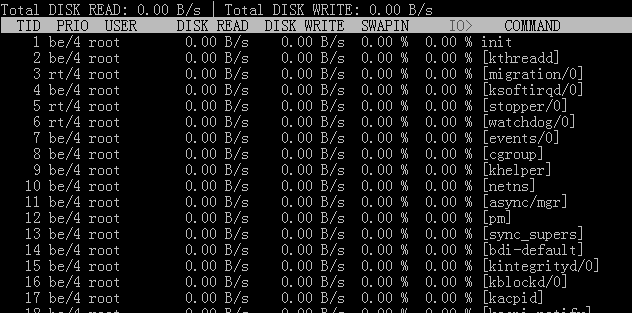
yum -y install iotop  或
sudo apt-get install iotop

官网:http://guichaz.free.fr/iotop/

io

用法 iotop -参数

–version 查看版本信息的

-h, –help 查看帮助信息的

-o, –only 只显示在划硬盘的程序
-b, –batch 批量处理 用来记录日志的

-n NUM 设定循环几次

-d SEC, –delay=SEC 设定显示时间间隔

其中按 r 是反顺序排列,按 o 为动态切换,按q退出。

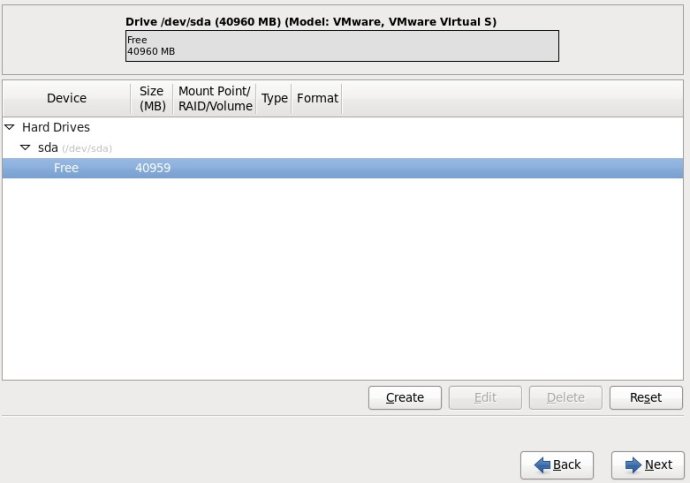
1.选择Free行,再点击Create按钮;
1

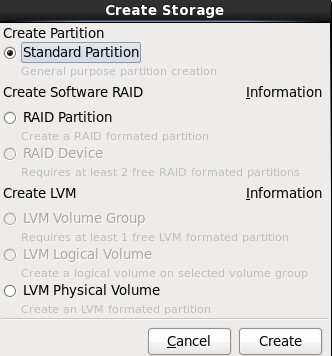
2.选择“Create Partition”选项中的“Standard Partition”,然后点击Create;
2

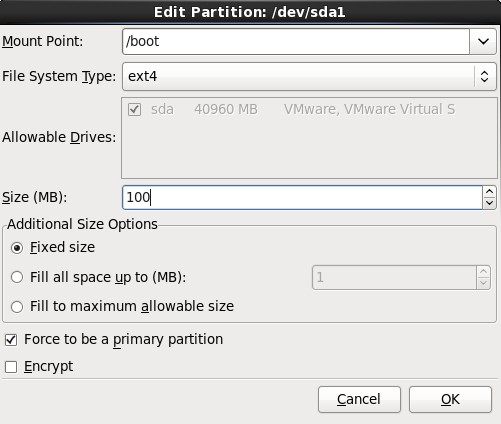
3.在挂载点上选择“/boot”,文件系统类型中选择“ext4”,大小填写100(单位为MB),然后在“Additional Size Options”区域选择“Fixed size”选项,最后再勾选“Force to be a primary partition”,最最后点击OK按钮;
3

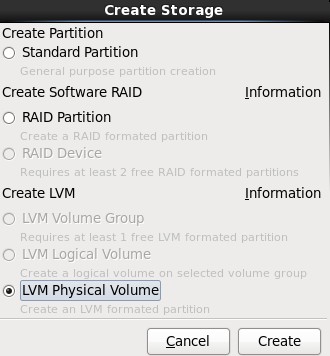
4.选择剩下来的Free行,点击Create按钮,在弹出的对话框中选择“Create LVM”选项中的“LVM Physical Volume”单选按钮,最后单击Create;
4

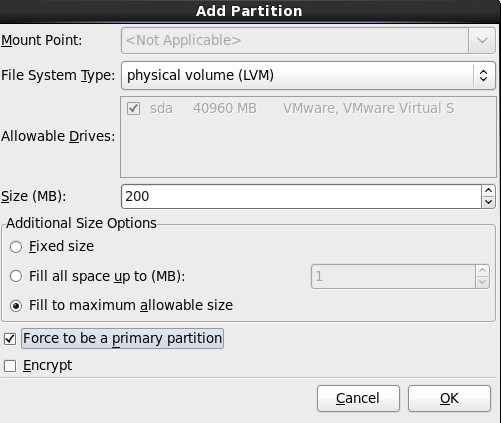
5.在弹出的“Add Partition”对话框中,在“Additional Size Options”区域选择“Force to be a primary size”选项,最后再勾选“Force to be a primary partition”,最最后点击OK按钮;
5

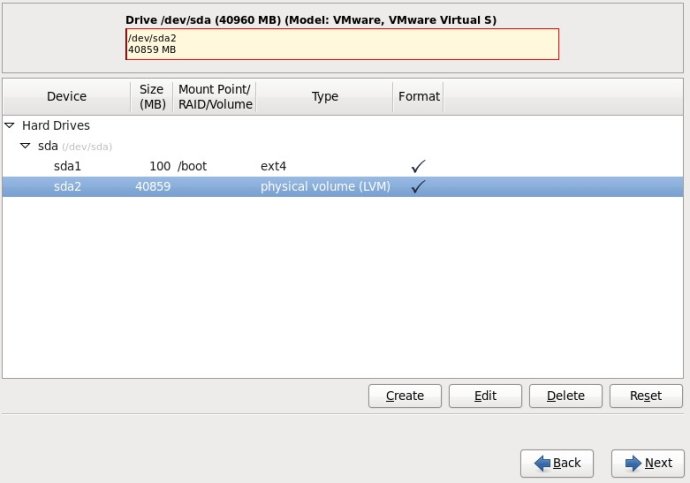
6.选中sda2这一行,单击“Create”按钮,(千万不要单击“Edit”,不然的话,会回到Standard Partition模式)
6

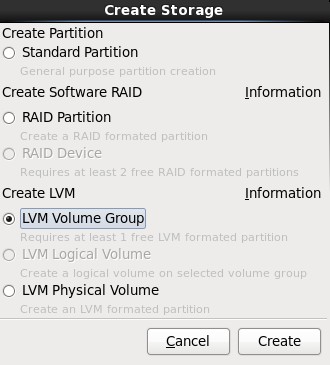
7.在弹出的“Create Storage”对话框中,选择“Create LVM”区域中的“LVM Volume Group”选项,最后单击Create按钮;
7

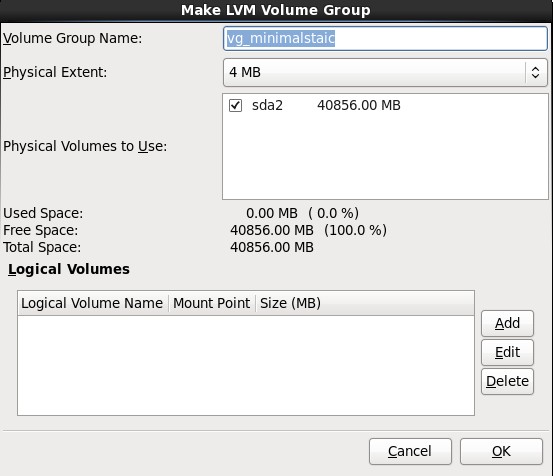
8.在弹出的“Make LVM Volume Group”对话框中,指定“Volume Group Name”的名称(不能包含空格)和“Physical Extent”的大小,默认为4M,最后点击OK按钮;(也可以在这里直接点击Add按钮添加LVM logical Volume)
8

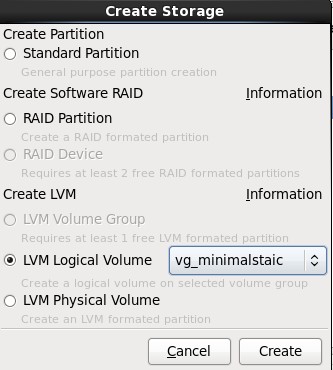
9.单击上图中的Add按钮,在弹出的“Create Storage”中选择“Create LVM”区域中的“LVM Logical Volume”,最后单击Create按钮;
9

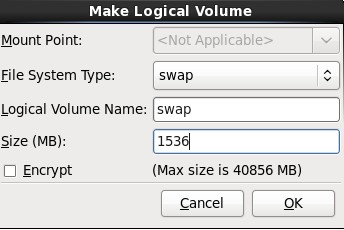
10.在弹出的“Make Logical Volume”对话框中指定挂载点、文件系统类型、逻辑卷的名字和卷的大小,最后单击OK按钮;(如果文件系统类型为swap,则没有挂载点)
10

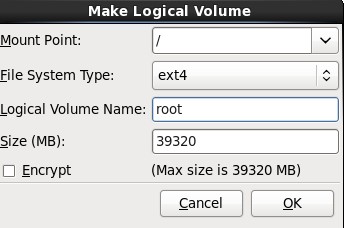
11.接着挂载根(/);
11

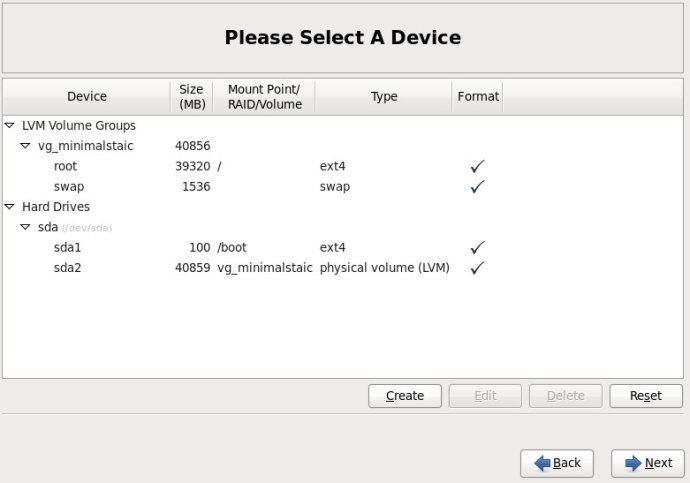
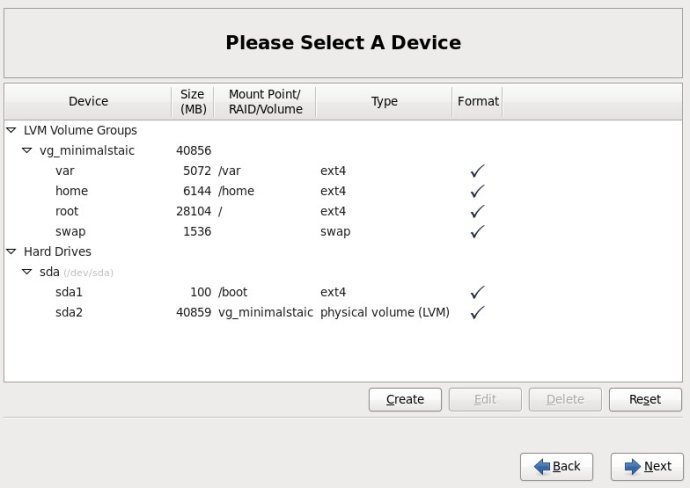
12.最后分区图如下:
12

13.挂载所有分区后的截图如下:
13

参考:http://www.newsky.net.cn/help/Show.asp?id=13

使用dd命令创建一个swap分区

[root@localhost Desktop]#dd if=/dev/zero of=/home/swap bs=1024 count=1048576

#count的计算公式: count=SIZE*1024 (size以MB为单位)
这样就建立一个/home/swap的分区文件,大小为1G,接着需要格式化新建的SWAP分区:

[root@localhost Desktop]# mkswap /home/swap

再用swapon命令把这个文件分区变成swap分区

[root@localhost Desktop]#swapon /home/swap
#关闭SWAP分区命令为:[root@localhost Desktop]#swapoff /home/swap

再用free -m查看一下,可以看出swap扩大了。

为了能够让swap自动挂载,要修改/etc/fstab文件

vi /etc/fstab
在文件末尾加上
/home/swap swap swap default 0 0

这样就算重启系统,swap分区就不用手动挂载了。

参考:http://blog.chinaunix.net/uid-26881541-id-3347389.html

源代码安装

yum remove curl curl-devel
 
wget http://curl.haxx.se/download/curl-7.24.0.tar.bz2
tar xfj curl-7.24.0.tar.bz2
cd curl-7.24.0
./configure --prefix=/usr
make
make install
#check version
curl -V
./configure --with-curl=/usr --with-curlwrappers

参考:http://gadelkareem.com/2012/02/27/upgrade-curl-7-24-on-centos-6-2/

问题一:php运行报错:1% 不是有效的 win32 应用程序
php环境配置完毕后,运行html成功,但运行php就报错,错误提示是“1% 不是有效的 win32 应用程序”,英文报%1 is not a valid Win32 application。第一次碰到这样的问题,经过搜索和试验,问题终于解决。

报错原因:由于在64位操作系统里,默认配置下,IIS工作在64位模式下,这会让许多32位的应用不能正常工作。

解决方法:

1)进入命令提示符:开始->运行 cmd
2)执行脚本:

cscript %SYSTEMDRIVE%\inetpub\adminscripts\adsutil.vbs SET W3SVC/AppPools/Enable32bitAppOnWin64 1

说明:%SYSTEMDRIVE%表示系统盘。例如,如果你的系统盘是C,那么上述语句改为:cscript c:\inetpub\adminscripts\adsutil.vbs SET W3SVC/AppPools/Enable32bitAppOnWin64 1

问题二:访问网页报错:Service Unavailable
经过上面的操作后,以为大功告成了,其实不然。访问网站竟然又报错:Service Unavailable。

解决方法如下:

1)进入命令提示符:开始->运行 cmd
2)执行脚本:

%SYSTEMROOT%\Microsoft.NET\Framework\v1.1.4322\aspnet_regiis.exe -i

说明:%SYSTEMROOT%\表示系统目录,一般是“C:\WINDOWS\”;v1.1.4322是默认.net版本,你也可以改为“v2.0.50727”等其他版本,关键是不要写错路径名,否则执行不成功。

转载:http://www.2cto.com/os/201212/173551.html

1、获取Squid源代码

wget http://www.squid-cache.org/Versions/v3/3.1/squid-3.1.9.tar.gz

2、编译及安装

tar -zxvf squid-3.1.9.tar.gz
cd squid-3.1.9
./configure --prefix=/usr/local/squid --enable-arp-acl --enable-linux-netfilter --enable-pthreads --enable-err-language="Simplify_Chinese" --enable-default-err-language="Simplify_Chinese" --enable-auth="basic" --enable-baisc-auth-helpers="NCSA" --enable-underscore
make
make install

3、编译生成Squid认证程序ncsa_auth

cd helpers/basic_auth/NCSA/
make
cp ncsa_auth /usr/sbin/
cd ../../../

4、使用htpasswd来生成用户名/密码对应的文件

htpasswd -c /usr/local/squid/password <用户名>

5、修改Squid配置文件

cd /usr/local/squid/
mv -f etc/squid.conf etc/squid.conf.bak
vi etc/squid.conf
 
# 插入如下内容
 
 
acl SSL_ports port 443
acl Safe_ports port 80      # http
acl Safe_ports port 21      # ftp
acl Safe_ports port 443     # https
acl Safe_ports port 70      # gopher
acl Safe_ports port 210     # wais
acl Safe_ports port 1025-65535  # unregistered ports
acl Safe_ports port 280     # http-mgmt
acl Safe_ports port 488     # gss-http
acl Safe_ports port 591     # filemaker
acl Safe_ports port 777     # multiling http
acl CONNECT method CONNECT
  
auth_param basic program /usr/sbin/ncsa_auth /usr/local/squid/password
acl normal proxy_auth REQUIRED
http_access allow normal
  
# Deny requests to certain unsafe ports
http_access deny !Safe_ports
  
# Deny CONNECT to other than secure SSL ports
http_access deny CONNECT !SSL_ports
  
# And finally deny all other access to this proxy
http_access deny all
  
# Squid normally listens to port 3128
http_port 3128
  
# We recommend you to use at least the following line.
hierarchy_stoplist cgi-bin ?
  
# Uncomment and adjust the following to add a disk cache directory.
#cache_dir null /tmp
  
# Leave coredumps in the first cache dir
coredump_dir /usr/local/squid/var/cache
  
# Add any of your own refresh_pattern entries above these.
refresh_pattern ^ftp:       1440    20% 10080
refresh_pattern ^gopher:    1440    0%  1440
refresh_pattern -i (/cgi-bin/|\?) 0 0%  0
refresh_pattern .       0   20% 4320

6、启动Squid

./sbin/squid

转载:http://www.oschina.net/code/snippet_4873_1535